Signing in
- Click Members at the top right of any page.
- Type your email address (or your username, if you remember it) and your password.
- Click Sign in. Resident Resources opens, with links to the Member Directory and My Directory Listing.
On your own phone, tablet or computer, tick Remember me if the sign-in box offers it, so you stay signed in. On a shared computer, leave it unticked and sign out when you’re done.
New to Bay Forest? Use Sign Up at the top of the page. The office approves each new account, and you’ll get an email when you can sign in.
Back to top
Find a neighbor
- Sign in and open Member Directory.
- Type part of a name, street or phone number in Search. The list narrows as you type.
- To see one neighborhood only, choose it under Neighborhood.
- Click a phone number to call, or an email address to write.
On a phone, each neighbor appears as a card with Call and Email buttons.
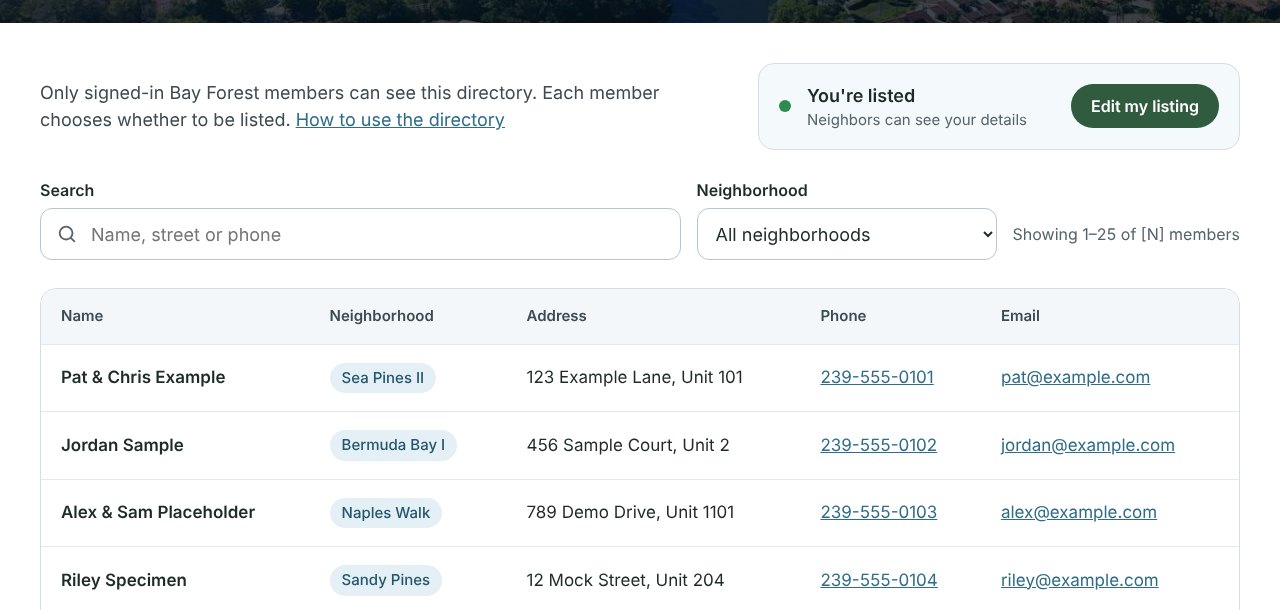
The Member Directory. Names shown are examples.
Back to top
Update your listing
Your listing is what neighbors see in the directory. You can change it any time on My Directory Listing.
- Sign in and open My Directory Listing (also linked from the top of the Member Directory).
- On the left, How neighbors see you shows your listing exactly as it appears in the directory.
- Change what you need on the right: the name(s) to show, phone, street address, unit, neighborhood, and whether you’re an owner, renter or seasonal guest.
- Click Save my listing. You’ll see “Saved. Your listing is updated.” and the directory shows the change right away.
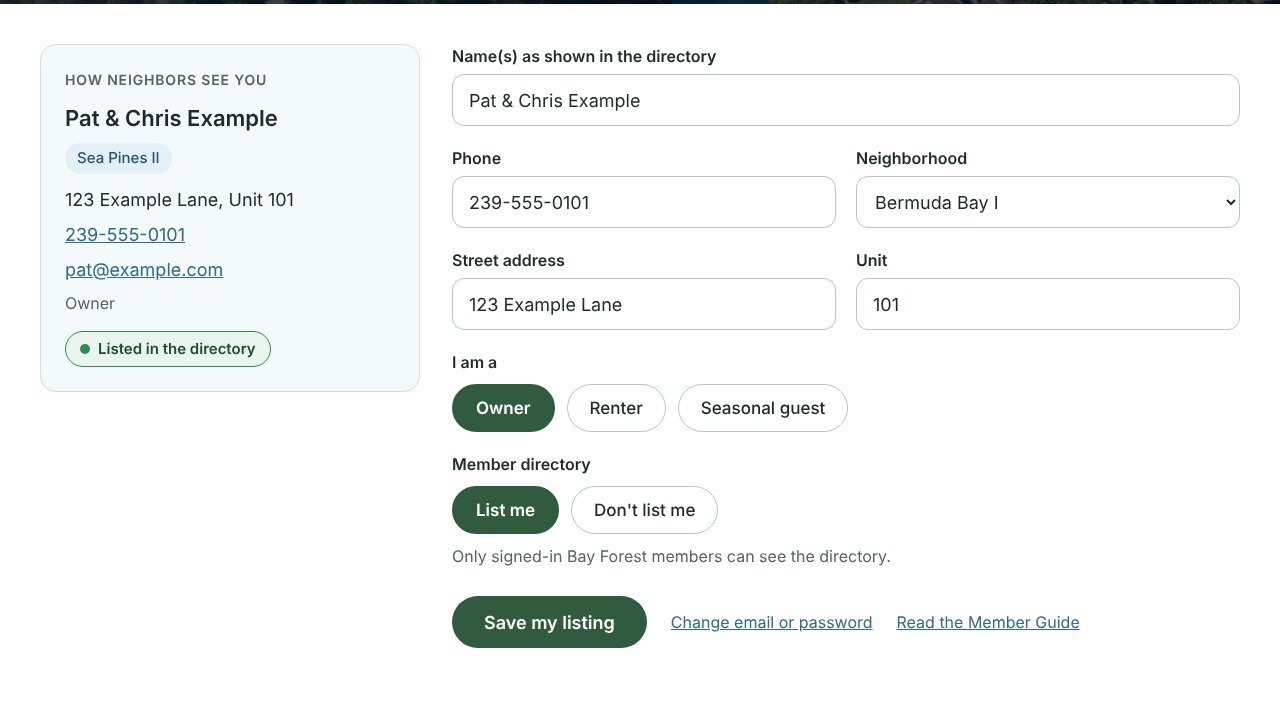
My Directory Listing. Your email and password are changed on a different page (see below).
Couples and households can show both names, for example “Pat & Chris Example”.
Back to top
Leave or rejoin the directory
Being listed is your choice, and you can change your mind at any time.
- To leave: on My Directory Listing, choose Don’t list me and click Save my listing. You disappear from the directory immediately.
- To rejoin: choose List me and save.
Leaving the directory doesn’t close your account. You can still sign in, use the directory and receive Bay Forest news.
Back to top
Change your password or email
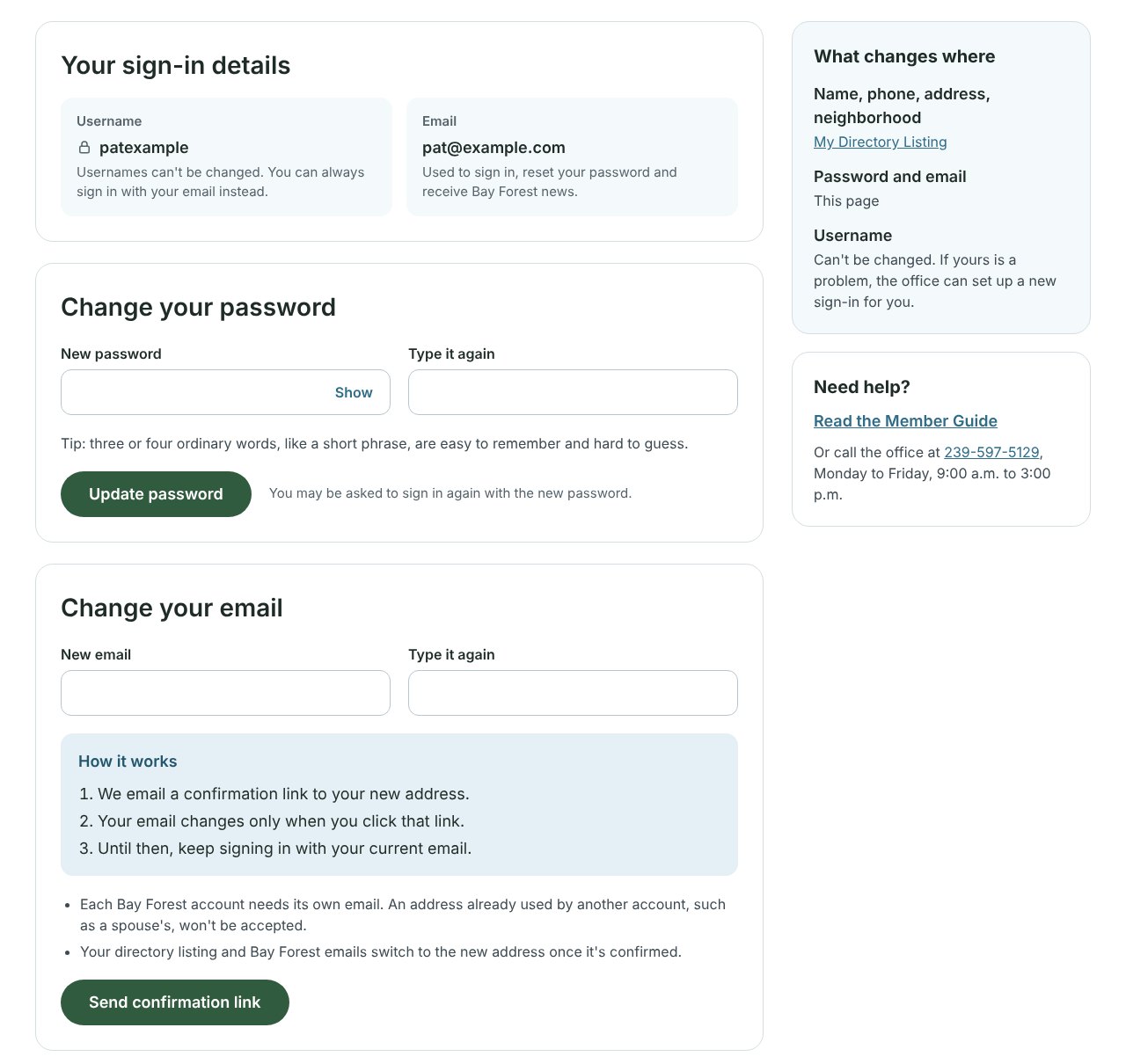
Both are on the Sign-in & Password page. You can reach it from the Change my email address button on My Directory Listing, or under Resources in the menu at the top of any page.
Change your password
- Type your current password, then your new password in New password and again in Type it again. Click Show to check what you typed.
- Click Update password.
- You may be asked to sign in again with the new password.
Tip: three or four ordinary words, like a short phrase, are easy to remember and hard to guess.
Change your email
- Step 1. Open My Directory Listing and click the Change my email address button, or choose Sign-in & Password from the Resources menu.
- Step 2. Under Change your email, type your new email address in both boxes, then click Send confirmation link.
- Step 3. We send a short email to the new address. It comes from Bay Forest and the subject is “Email Change Request”. If it hasn’t arrived within a few minutes, look in your spam or junk folder.
- Step 4. Open that email and click the link inside it. A phone, tablet or computer all work.
- Step 5. If you are asked to sign in, sign in the way you do today, with your current email and password. The link only works for your own account.
- Step 6. The page tells you your email is changed. From then on, sign in with the new address.
Nothing changes until you finish Step 4. Until then, keep signing in with your current email. If the link stops working, go back to Sign-in & Password and send a new one.
Good to know
- Usernames can’t be changed. You can always sign in with your email instead. If your username is a problem, the office can set up a new sign-in for you.
- One email per account. An email already used by another Bay Forest account, such as a spouse’s, won’t be accepted. Spouses can each have their own account, or share one.
- Your listing follows your email. Once a new email is confirmed, your directory listing and Bay Forest emails use it.
- Name, phone and address are changed on My Directory Listing, not here.
Back to top
Forgot your password
- Click Members, then Lost your password? (or go straight to Reset your password).
- Type the email or username you use for Bay Forest and click Email me a reset link.
- Open the email from Bay Forest and click the link inside.
- Type your new password and sign in with it.
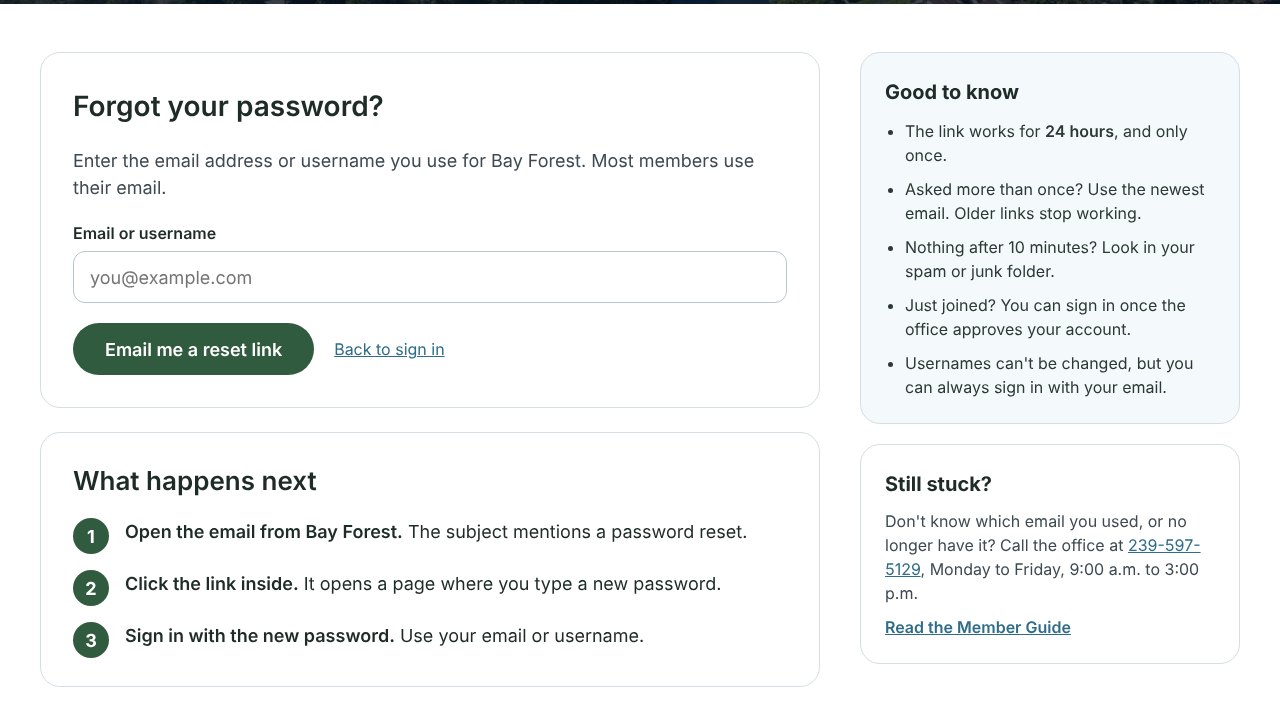
Good to know
- The link works for 24 hours, and only once.
- Asked for more than one link? Use the newest email. Older links stop working.
- Nothing after 10 minutes? Look in your spam or junk folder.
- Just joined? You can sign in once the office approves your account.
Back to top
Who can see the directory
- Only signed-in Bay Forest members can open the Member Directory.
- Only members who chose List me appear in it.
- Your password is never shown to anyone, including the office.
Back to top
Quick answers
| If this happens | Try this |
|---|
| I can’t sign in | Try your email instead of your username. Still stuck? Use “Lost your password?” to get a reset link. |
| The reset email never arrived | Check spam or junk, wait 10 minutes, then request one more link and use the newest email. |
| My details in the directory are wrong | Fix them on My Directory Listing and click Save my listing. |
| I don’t want to be in the directory | Choose “Don’t list me” on My Directory Listing and save. |
| My spouse and I share one email | Share one account and show both names, or each use your own email for separate accounts. |
| I want a different username | Usernames can’t be changed. Sign in with your email, or ask the office for a new sign-in. |
Still need help?
Call the Bay Forest office at 239-597-5129, Monday to Friday, 9:00 a.m. to 3:00 p.m.
Go to the Member Directory